Difference between revisions of "Programming the Device"
Jump to navigation
Jump to search
m (edit typo mistakes) |
|||
| (9 intermediate revisions by 4 users not shown) | |||
| Line 62: | Line 62: | ||
==Download and Loading Firmware== | ==Download and Loading Firmware== | ||
| + | ===dsPicProgrammer User Guide=== | ||
| + | [http://chungyan5.no-ip.org/download/software/dsPicProgrammer/dsPicProgrammerUserGuide_V2.0.1.pdf dsPicProgrammerUserGuide_V2.0.1] | ||
===Hardware Requirement=== | ===Hardware Requirement=== | ||
| Line 69: | Line 71: | ||
===Software Requirement=== | ===Software Requirement=== | ||
| − | + | #[http://chungyan5.no-ip.org/vc/?root=dspicProgrammer dsPicProgrammer] | |
| − | |||
| − | #[http://chungyan5.no-ip.org/vc/?root=dspicProgrammer dsPicProgrammer] | ||
===Files=== | ===Files=== | ||
| Line 79: | Line 79: | ||
====Setup COM Port==== | ====Setup COM Port==== | ||
| − | [[Image:DSC00921.JPG]] | + | [[Image:DSC00921.JPG | 480px]] |
*Connect your USB-COM converter cable to your computer | *Connect your USB-COM converter cable to your computer | ||
*Or Using a real COM PORT | *Or Using a real COM PORT | ||
| − | [[Image:1.jpg]] | + | |
| + | ---- | ||
| + | =====Find out your COM port Number===== | ||
| + | [[Image:1.jpg | 480px]] | ||
*Go to Control Panel \ Device Manager | *Go to Control Panel \ Device Manager | ||
| − | [[Image:2.jpg]] | + | |
| + | ---- | ||
| + | [[Image:2.jpg | 480 px]] | ||
*Find out your Device COM Port Number | *Find out your Device COM Port Number | ||
| + | |||
| + | ---- | ||
====Get the Dspic Programmer==== | ====Get the Dspic Programmer==== | ||
| − | *Download [http://chungyan5.no-ip.org/open_data/electronic_computer/platforms/dspic/dsPicProgrammer/ | + | [[Image:programmer_3.jpg |480px]] |
| − | + | *Download [http://chungyan5.no-ip.org/open_data/electronic_computer/platforms/dspic/dsPicProgrammer/dsPicProgrammer3.00.01s.zip dsPicProgrammer.zip], from [http://chungyan5.no-ip.org/open_data/electronic_computer/platforms/dspic/dsPicProgrammer/ws/ updated directory] or [http://chungyan5.no-ip.org/vc svn server] | |
| − | + | *Unzip the dsPicProgrammer.zip, then you have an unziped file. | |
| − | *Unzip the | + | |
| − | [[Image: | + | |
| + | ---- | ||
| + | ====Download Firmware==== | ||
| + | [[Image:programmer_4.jpg |480px]] | ||
| + | *Save your .hex file(foo.hex) to the folder called firmware. | ||
| + | *Run dsPicProgrammer.bat (Windows) / dsPicProgrammer.sh (linux) | ||
| + | **Make sure your device is connected through a "Direct RS232 Cable" to PC Serial Port. | ||
| + | |||
| + | |||
| + | ---- | ||
| + | [[Image:programmer_6.jpg |480px]] | ||
| + | *Choose a COM port | ||
| + | *Choose a baudrate | ||
| + | ::115200 is communication speed [in bps] | ||
| + | |||
---- | ---- | ||
| + | [[Image:programmer_7.jpg |480px]] | ||
| + | *Choose a .hex file | ||
| − | |||
| − | |||
| − | |||
---- | ---- | ||
| + | [[Image:programmer_8.jpg |480px]] | ||
| + | *Press start | ||
| + | *Then press Yes to confirm programming the device | ||
| + | |||
| − | |||
| − | |||
| − | |||
| − | + | ---- | |
| − | + | [[Image:programmer_9.jpg | 480px]] | |
| − | + | *The status during programming | |
| − | + | ||
| − | |||
| − | |||
| − | |||
| − | |||
| − | |||
| − | |||
| − | |||
| − | |||
| − | |||
| − | |||
| − | |||
| − | |||
| − | |||
| − | |||
| + | ---- | ||
| + | [[Image:programmer_10.jpg |480px]] | ||
| + | *The programming have been completed, press OK the close the message box | ||
| + | ---- | ||
===Troubleshooting=== | ===Troubleshooting=== | ||
====Invalid COM Port==== | ====Invalid COM Port==== | ||
| Line 145: | Line 156: | ||
*Solution: | *Solution: | ||
**Copy the contents under directory '''C:/Program Files/Java/jre$(VERSION)/''' to '''/dsPicProgrammer/jre''' | **Copy the contents under directory '''C:/Program Files/Java/jre$(VERSION)/''' to '''/dsPicProgrammer/jre''' | ||
| + | |||
| + | == Further reading == | ||
| + | |||
| + | * [[PIC Programmers, In Circuit Programming and BootLoaders]] | ||
Latest revision as of 23:29, 25 April 2012
Description on how to use dsPicProgrammer to download firmware to DsPIC30F 5011 Development Board
Contents
Loading Bootloader (Once only)
Hardware Requirement
- PC with USB port (with Windows)
- ICD2 Programmer
- Target Board
- 5V Power Supply
Software Requirement
- MPLAB IDE v7.50: v7.60 is not compatible with our current ICD2 Programmers. There are consistent "Devices cannot be founded" warnings. See manual for details.
Files
- dsPicBootloader (bl_$(MODEL).hex).
Procedure
| Step | Remarks |
|---|---|
| Install MPLAB IDE |
|
| Install USB Driver |
|
| Select Target Chip |
|
| Load Bootloader |
|
| ICD 2 <-> PC |
|
| Target <-> ICD 2 |
|
| ICD 2 <-> PC |
|
| Start Programming |
|
| Finishing |
|
Download and Loading Firmware
dsPicProgrammer User Guide
dsPicProgrammerUserGuide_V2.0.1
Hardware Requirement
- PC (Linux/Windows) with COM Port OR USB-COM converter cable
- Target Board (with bootloader)
- 5V Power Supply
Software Requirement
Files
- Application hex file (e.g. app.hex)
Procedure
Setup COM Port

- Connect your USB-COM converter cable to your computer
- Or Using a real COM PORT
Find out your COM port Number

- Go to Control Panel \ Device Manager

- Find out your Device COM Port Number
Get the Dspic Programmer

- Download dsPicProgrammer.zip, from updated directory or svn server
- Unzip the dsPicProgrammer.zip, then you have an unziped file.
Download Firmware

- Save your .hex file(foo.hex) to the folder called firmware.
- Run dsPicProgrammer.bat (Windows) / dsPicProgrammer.sh (linux)
- Make sure your device is connected through a "Direct RS232 Cable" to PC Serial Port.

- Choose a COM port
- Choose a baudrate
- 115200 is communication speed [in bps]

- Choose a .hex file

- Press start
- Then press Yes to confirm programming the device

- The status during programming

- The programming have been completed, press OK the close the message box
Troubleshooting
Invalid COM Port
- In case of selecting an invalid COM port, you should see the error message:
gnu.io.NoSuchPortException: Choosing COM Port Error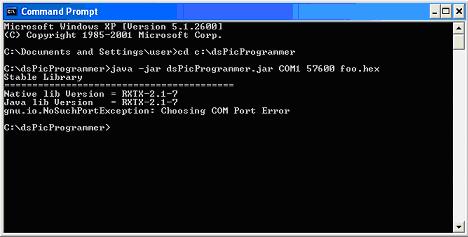
- Solution: check the COM port ID, or close any programs that are using the COM Port

Missing firmware file
- In case of selecting a firmware file that does not exist, you should see the error message:
java.io.FileNotFoundException: foo1.hex <The system cannot find the file specified>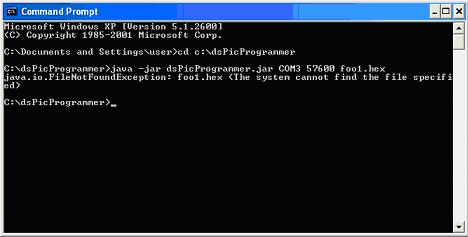
- Solution: check the file path

Missing RXTX driver
- In case of missing the RXTX driver, you should see the error message:
Exception in thread “main” java.lang.NoClassDefFoundError: gnu/io/UnsupportedCommOperationException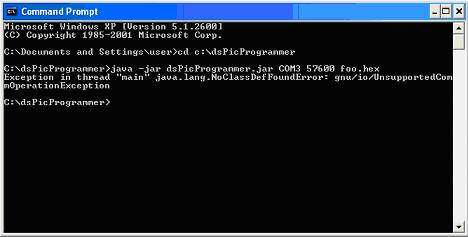
- Solution:
- Copy RXTXcomm.jar to /dsPicProgrammer/rxtx/lib
- Copy rxtxSerial.dll to /dsPicProgrammer/rxtx/bin (Window)
- Copy librxtxSerial.so to /dsPicProgrammer/rxtx/bin (Linux)

Missing JAVA
- In case of missing JAVA JDK or JRE, an error message will be prompted.
- Solution:
- Copy the contents under directory C:/Program Files/Java/jre$(VERSION)/ to /dsPicProgrammer/jre
